
Wingdings 2 Translator: Convert, Copy, and Share Symbols
Ever seen weird symbols, strange icons, or checkboxes that look just like a secret code and wondered what they mean? Maybe those symbols belong to Wingdings 2. Wingdings 2 is a symbol font Microsoft introduced in 1990, and it turns normal text into icons. It tool can convert normal text into Wingdings 2 symbols and turn those symbols back into readable text.
How to Use the Wingdings 2 Translator Step by Step
The Wingdings 2 translator is easy to use. Here’s how it works, step by step.
Convert Text into Symbols
Enter your text
Type or paste your normal English text into the input box, whether it’s a single word or a full sentence.
See the result
Your Wingdings 2 symbols will appear automatically in the output box.
Copy, download, or share
When your result appears in the output box, click the Copy button and paste it wherever you want, such as WhatsApp, Instagram, Google Docs, email, or any other app. You can also download the result as an image to save it as a picture or share the result link with your friends.
Convert Symbols into Text
The tool has Auto-detect built in, so it recognizes Wingdings 2 symbols when you paste them
To change Wingdings 2 symbols into text, paste them in the input box, and this tool will convert them into readable text.
What Is Wingdings 2 Translator?
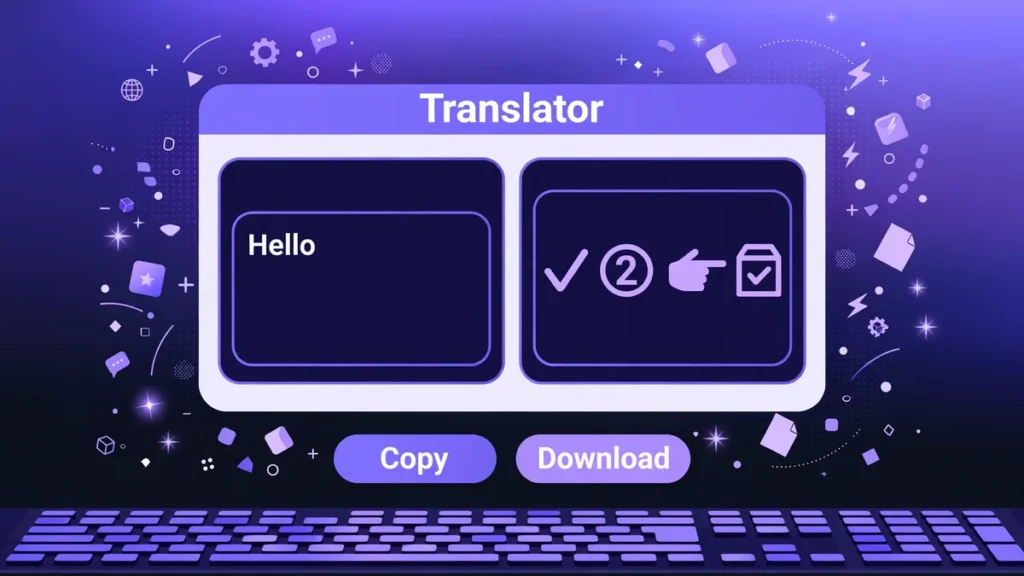
It is a free tool that converts normal English text into symbols like checkmarks, hands, and shapes, and it can also decode those symbols back into readable text. It is not a language translator; it replaces letters and numbers with Wingdings 2 symbols, with each character corresponding to a specific symbol. You don’t need to install any font; the tool generates symbols as Unicode characters, so you can paste them anywhere (WhatsApp, Instagram, Google Docs, and email). People use it for fun secret messages, creative posts, and puzzles.
Why Do People Use It?
People use the Wingdings 2 translator for several practical and fun reasons.
• Some people use a Wingdings 2 translator to send messages to their friends that other people cannot easily read. It makes the message look like a secret code.
• Designers add checkmarks, boxes, and shapes to posters, social media posts, and logos to give them a unique look.
• People used Wingdings icons to make messages visually interesting before emojis became popular, and some people still like their unique style today.
It’s a quick way to make text look different and creative without any skill.
Wingdings 2 Symbols Explained
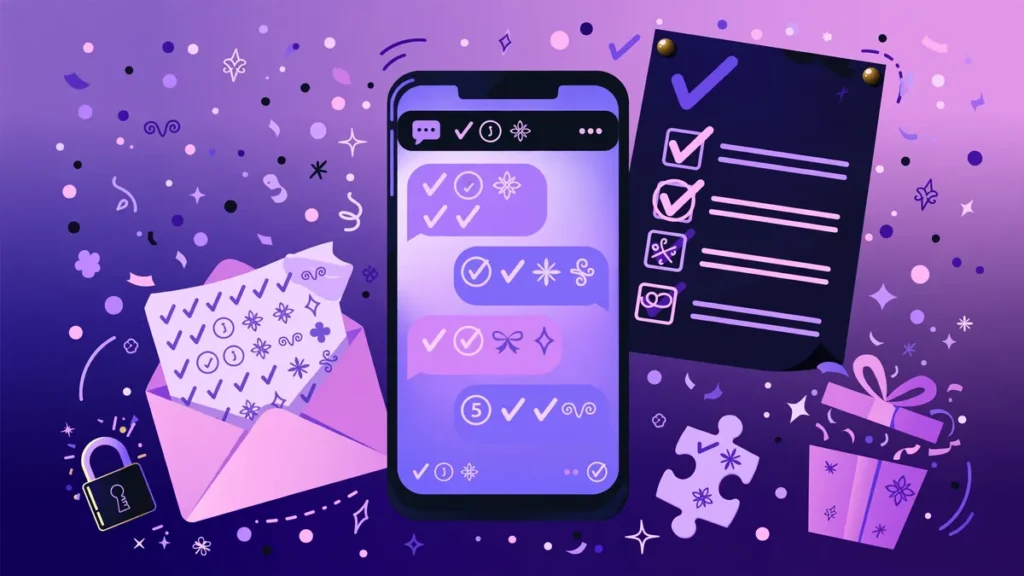
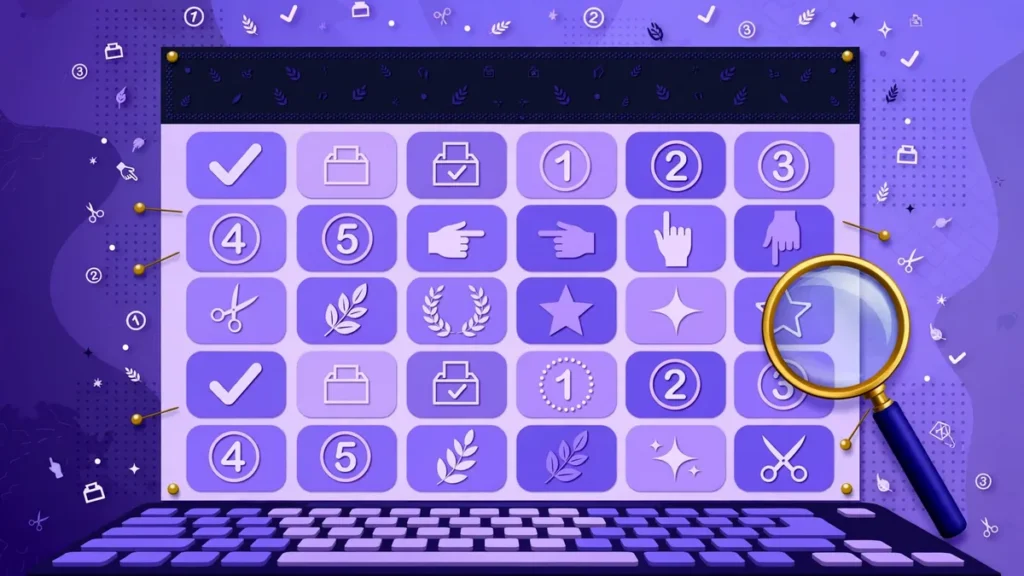
In Wingdings 2, every letter and number turns into a symbol, and uppercase and lowercase letters give different results. When you type normal text, lowercase letters turn into circled numbers or small ornaments, while uppercase letters give you more variety, like hands and check marks. You can copy the symbols and use them in your chats, bios, and documents.
Wingdings 2 Symbols
Wingdings 2 vs Wingdings: What Is the Difference?
A lot of people mix up Wingdings and Wingdings 2, but the symbols they produce are quite different. Both fonts use the same keyboard keys, yet each key displays a different symbol depending on the font. They were designed by Kris Holmes and Charles Bigelow in the early 1990s.
|
Points |
Wingdings |
Wingdings 2 |
|---|---|---|
|
Think of it as |
The classic, emoji-style set |
The office and ornament set |
|
Lowercase letters become |
Zodiac signs, circles, squares, and diamonds |
Buds, leaves, and circled numbers |
|
Uppercase letters become |
Hands, faces, a bomb, a skull, weather icons, and crosses |
Hands, check marks, and ballot boxes |
|
Common issue |
Wrong text if you paste Wingdings 2 symbols here |
Wrong text if you paste Wingdings symbols here |
|
“Hello” looks like |
☟♏●●□ |
🖠🙚③③⑥ |
Who Uses a Wingdings 2 Font Online Translator
Different people use Wingdings 2 translators for different reasons. Some do it for fun, while others use them for work, games, and puzzles. The tool is fast and easy to use, so anyone can try it to turn text into symbols.
Students
Students use this tool to explore how symbol fonts work and to add a creative touch to school projects and presentations. It’s also used for fun, secret messages, and puzzle creation.
Graphic designers
Graphic designers add Wingdings 2 symbols to posters, social media posts, and logos for a unique look. It allows users to convert text into checkmarks, hands, and shapes without manually searching for each symbol. If you’re sharing the design with others, export it as an image or PDF to ensure the symbols look the same on every device
Games and puzzles
Game and puzzle creators use the Wingdings 2 translator to make riddles, treasure hunts, and symbol-based challenges. The translator saves time because they can convert text into symbols instantly instead of matching each letter by hand.
Social media users
Social media users add Wingdings 2 symbols to Instagram bios, TikTok captions, and WhatsApp statuses to make their posts look different.
Frequently Asked Questions
Final Verdict
A Wingdings 2 translator easily turns English text into symbols and symbols back into text. Just paste your words into the translator above and see the results instantly. Copy, share, or use them in any project.
It saves time, removes the need for manual character matching, reduces errors, and delivers accurate results. People use it for secret messages, puzzles, fun content, checklists, and even education. Since Wingdings 2 is a symbol font, always check your output before sharing or publishing it.