
Wingdings Translator from Image: Decode Symbols from a Photo
Upload a JPG or PNG image to Wingdings Image Translator to decode symbols into readable text. Copy the decoded message to read symbol puzzles, memes, and hidden messages.
You usually receive screenshots, memes, or photos with strange Wingdings symbols and struggle to understand their meaning. Wingdings translator from image converts these confusing symbols into readable text without matching every character manually. Upload your image and uncover the message in just a few steps.
Wingdings maps 224 keyboard characters to symbols, so choosing the wrong font can lead to confusing results. We’ll guide you on how to decode images, choose from four Microsoft symbol fonts, and improve accuracy. You will also learn how to fix errors in puzzles, memes, and old Word files.
What Is a Wingdings Translator from Image?
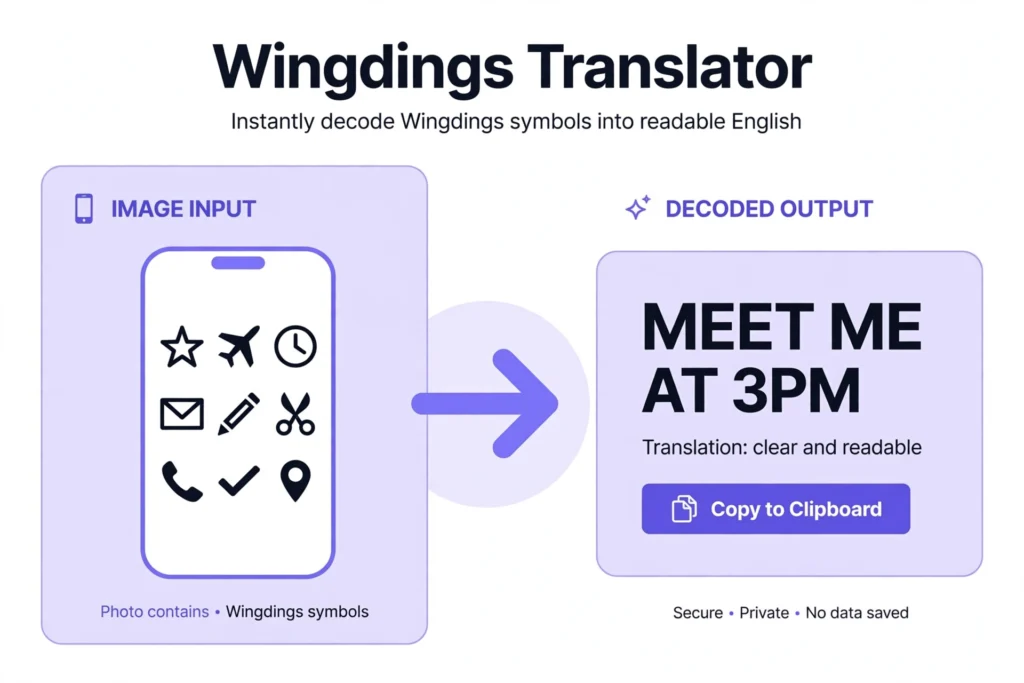
A Wingdings translator from image is an online tool that converts symbols in screenshots and photos into readable text. It helps you decode messages without matching each symbol to a keyboard letter manually. You can use it to read Wingdings symbols in memes, puzzles, and other images.
It supports JPEG, PNG, GIF, and WebP images up to 10 MB per file. You can upload individual pictures or add multiple images for batch processing. You can paste images from your clipboard or use your camera to upload them directly. Once the tool processes the image, you can copy the readable text and understand the message.
How to Use a Wingdings Translator from Image To Text?
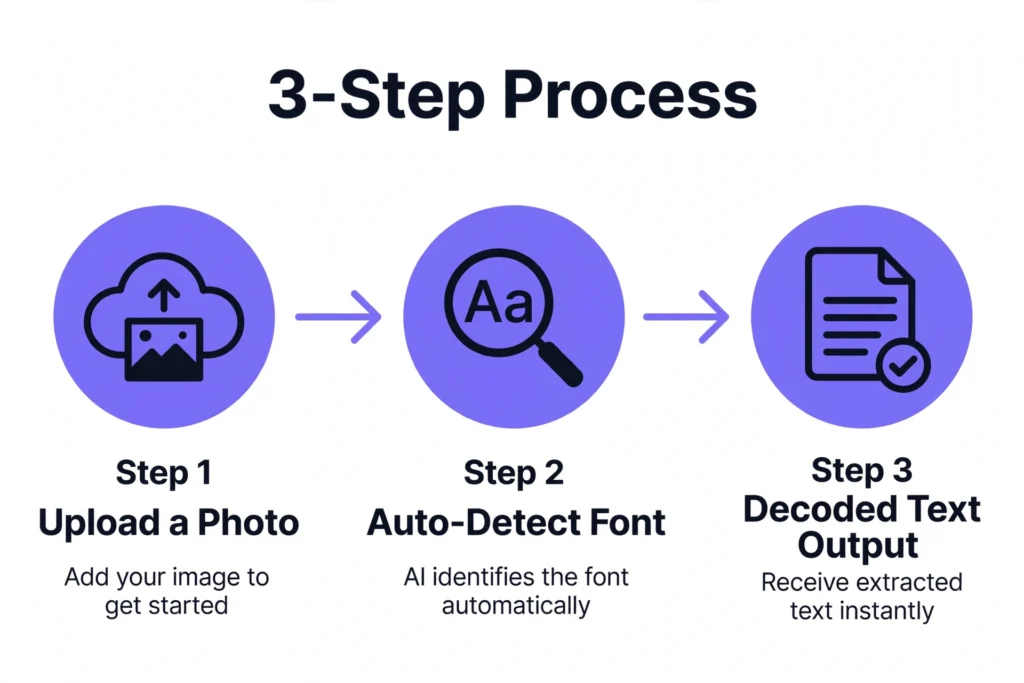
Decoding an image takes only a few minutes when you follow the accurate steps in order. It handles the scanning, and you only prepare the image and review the result. Here is how to use Wingdings translator from image accurately:
Step 1: Upload Your Image
Upload an image, drag and drop it, paste a screenshot, or take a photo using your camera.
Step 2: Select or Auto-Detect the Font
Its Auto-Detect feature identifies the font automatically. You can also choose the desired symbol font, such as Wingdings 1, 2, 3, or Webdings.
Step 3: Decode the Symbols
The image translator translates the symbols into readable text. You can also upload multiple images at once.
Step 4: Review the Results
Check the decoded text and confidence scores. Review amber-highlighted symbols and their suggested alternate readings.
Step 5: Copy or Download the Text
Click Copy to copy the translated text, Download TXT to save it, or Use in Translator to continue.
How Image Translators Recognize Wingdings Symbols
Wingdings symbols can be difficult to read when they appear in an image instead of regular text. Here is how an image translator recognizes Wingdings symbols and converts them into readable text:
1. Image Preprocessing
Wingdings Image Translator first prepares your picture by resizing it, converting it to grayscale, and boosting contrast. Dark symbols are then separated from the lighter background so edges become easier to read.
2. Symbol Detection
It looks for horizontal rows of symbols and splits each row into single characters. This lets it read one symbol at a time instead of treating the picture as one shape.
3. Symbol Matching
It compares each detected shape with stored Wingdings patterns to find the closest match. However, blurry or unclear symbols can lead to incorrect results.
4. Optical Character Recognition (OCR)
OCR helps software recognize symbols in images, but standard OCR focuses on regular letters. Wingdings requires special symbol recognition for accurate results.
5. Text Conversion
The converter changes recognized Wingdings symbols into readable text.
6. Result Verification
A Wingdings chart helps verify unclear symbols and correct mistakes. You sould check the converted text before copying or sharing it.
Why Wingdings Text Becomes Unreadable in Pictures
Wingdings symbols can be difficult to read in pictures for these reasons:
- Wingdings replaces typed letters with pictures instead of normal text. For example, capital A shows a victory hand, B shows an OK hand, and C shows a thumbs-up.
- Lowercase letters a to l represent the twelve zodiac signs, which can make some messages look like horoscopes.
- Once you take a screenshot, the text becomes part of the image. So you cannot select or copy it like regular text.
- Social media posts, memes, game screenshots, and scanned papers often contain Wingdings symbols without the original keyboard data.
- Wingdings Image Decoder analyzes visible shapes in the picture to help convert symbols into readable text.
Key Features of Our Wingdings Image Translator
Wingdings translator from image helps you turn confusing symbols in pictures into readable text. Here are its key features that make it standout.
Fast Symbol Conversion
You need to upload your image, and it starts scanning every symbol without any extra clicks. Typing each character by hand is unnecessary, which saves minutes on messages with twenty or more symbols. Accuracy still depends on image quality, so a sharp and well-lit picture gives the best result.
Screenshot Support
It accepts screenshots taken from websites, apps, games, and Word documents on any device. Cropping the screenshot to show only the symbols removes distractions and improves recognition accuracy noticeably. Your friend’s message then appears as clean text instead of a confusing row of shapes.
Photo Recognition
Wingdings screenshot translator scans photos of printed pages, posters, and screens that contain Wingdings symbols. Each shape is compared with stored symbol patterns, and the closest match becomes your letter. Good lighting reduces recognition errors, while blurry or tilted photos can weaken the final result.
Simple Online Access
You can open it in Chrome, Safari, Firefox, or Edge without installing any software. It stays available on this page whenever a new symbol message lands in your chat. Large files may take a few extra seconds to upload on slow mobile internet connections.
Mobile and Desktop Support
Wingdings image translator runs on Android phones, iPhones, tablets, Windows laptops, and Mac computers through the browser. You can upload screenshots straight from your phone gallery or your computer folders in one tap. The layout adjusts to your screen size, so buttons stay easy to reach and tap.
Multiple Image Formats
It accepts PNG and JPG images, the two formats most phones and screenshots produce. PNG keeps edges sharper, so it usually gives more accurate results than compressed JPG files. The upload box shows file size limits, so you know the rules before choosing a file.
Easy-to-Read Results
The decoded text appears on your screen right after the scan finishes processing your image. You can read the message at once instead of checking every symbol against a chart. A few similar-looking symbols may still be wrong, so a quick chart check helps with doubtful ones.
Copyable Text Output
It gives you a copy button that places the decoded text on your clipboard instantly. You can paste the result directly into notes, Word documents, WhatsApp chats, or email drafts. A quick review before sharing helps you correct any symbol that the scanner misread by mistake.
Additional Features for Easier Image Decoding
Its additional features give you more ways to upload images, check symbol recognition, and manage decoded text.
- Clipboard Paste: You can paste a copied screenshot straight into the translator.
- Camera Input: You can capture Wingdings symbols from a printed page or another screen. The translator then decodes the photo for you.
- Batch Image Processing: It allows you to upload several images in one session.
- Automatic Font Detection: It detects the likely symbol font in your image to find the correct Wingdings variant without testing each option by hand.
- Confidence Scores: It shows a confidence level for each recognized symbol. You can spot uncertain matches and review them more carefully.
- Overlay Labels: Image translator places recognition labels on top of your original image. So, you can compare each detected symbol with its actual position.
- Download Results: You can save the decoded text or other output files.
- Use in Translator: You can send the recognized text to the text translator. You can keep converting or checking the message without typing it again.
- On-Device Processing: When your device supports it, the tool processes images locally.
The Four Symbol Fonts You Find in an Image
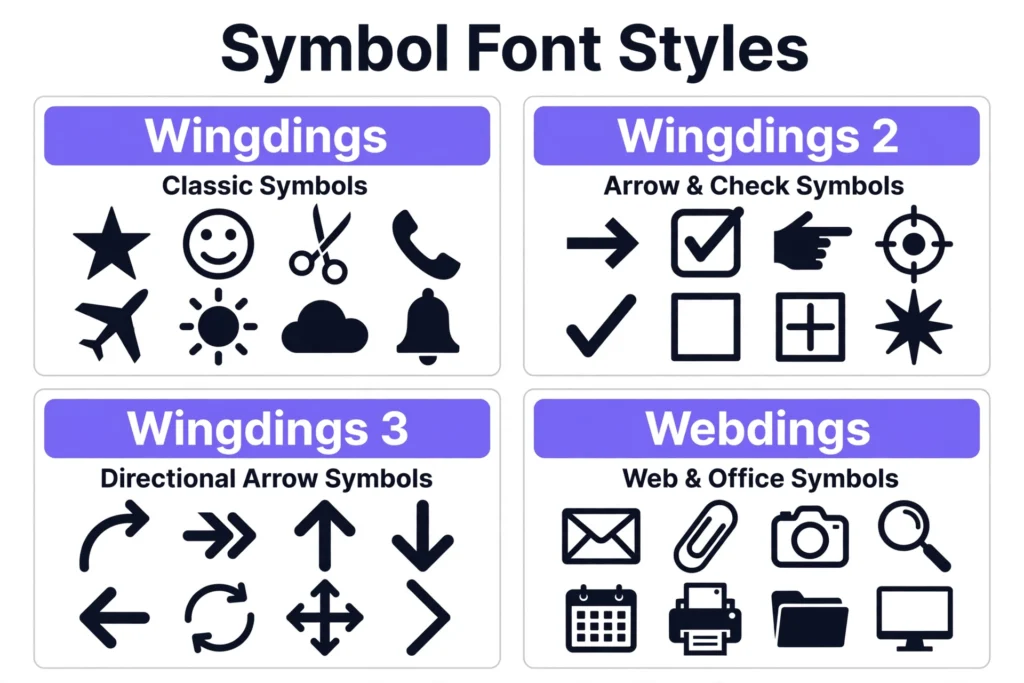
Not every symbol image uses classic Wingdings, and choosing the wrong font produces random letters. Wingdings translator from image allows you switch between all four fonts whenever the first result looks wrong.
Wingdings
Classic Wingdings is the most common font behind secret messages, memes, and online guessing puzzles. It contains hands, faces, flags, zodiac signs, buildings, envelopes, and many other basic geometric shapes. If you’re unsure which font applies, start with our Wingdings Translator to decode the symbols.
Wingdings 2
Wingdings 2 focuses on ballot boxes, check marks, pens, and clean geometric shapes for documents. You may find these symbols in printed forms, task checklists, and old Microsoft Office presentations. A box or check mark that looks strange in a screenshot usually points toward this font.
Wingdings 3
Wingdings 3 mainly contains arrows in curved, bold, outlined, and double styles pointing in every direction. Designers use these symbols in presentation slides, flowcharts, and visual guides to show direction clearly. An image full of arrows almost always points toward this font, so test it right after classic Wingdings.
Webdings
Webdings contains picture symbols such as globes, hearts, and cameras that closely resemble modern emojis. Microsoft released it in 1997 for designers who needed small icons on their web pages. You can use Webdings Translator to convert Webdings symbols into readable text.
Best Photo Tips for Accurate Results
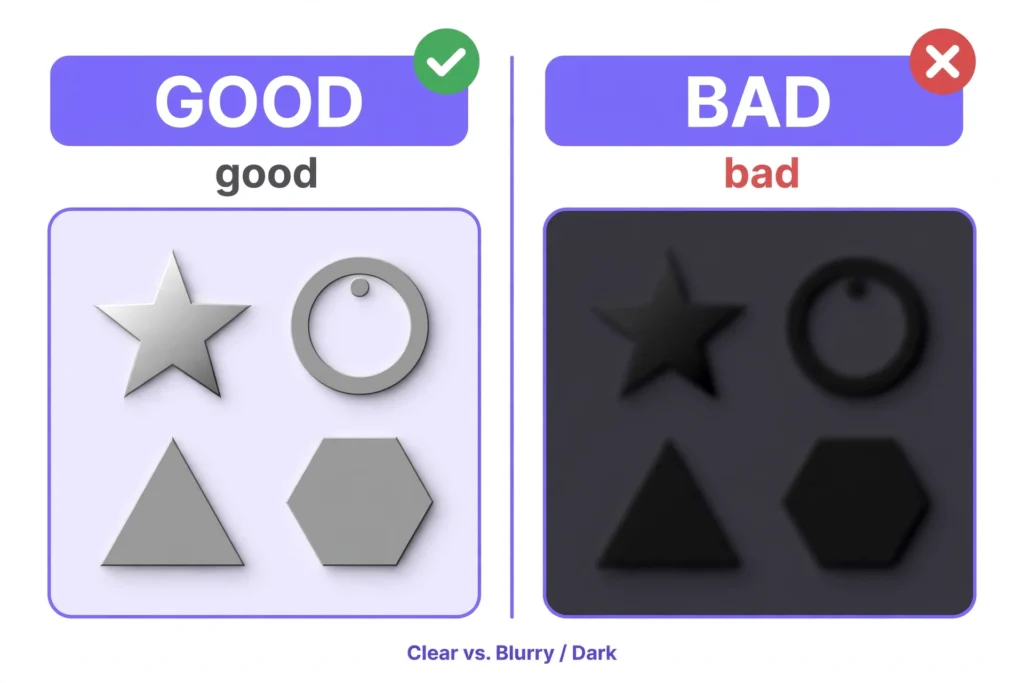
Clear, high-quality images help Wingdings Image Translator recognize symbols more accurately. Follow these tips to reduce scanning errors, avoid missing characters, and get more readable results from your image.
- Choose a large, sharp image with clear symbol edges so it can detect neighboring symbols without merging their outlines.
- Zoom the original screen to 150% or 200% before taking a screenshot to give the scanner more visual detail for matching patterns.
- Use dark symbols on a plain white background to improve contrast and help the tool detect each shape accurately.
- Keep the camera straight and avoid blur or glare when photographing symbols on a monitor, as these issues can hide important details.
- Check that each image is within the 10 MB file size limit and uses JPEG, PNG, GIF, or WebP format.
- Crop each line separately when symbol sizes differ noticeably. So, the scanner can process symbols of a more consistent size.
- Remove regular text, watermarks, and stickers from the image to prevent unwanted details from affecting the decoded results.
- Remove names, phone numbers, and faces before uploading images online. Review the website’s privacy policy, and avoid clicking suspicious links in decoded messages.
- Review amber symbols and compare their alternate readings beside the confidence scores.
Wingdings vs. Unicode vs. Emoji
Wingdings needs a compatible font to display its symbols correctly, while Unicode and emoji use standard character codes. Here is how they compare in terms of features, device support, appearance, and common uses.
|
Feature |
Wingdings |
Unicode |
|---|---|---|
|
Defination |
A symbol font that maps keyboard characters to pictures |
A standard that assigns codes to characters and symbols |
|
How It Works |
Requires a compatible font to display symbols correctly |
Uses character codes supported by software and fonts |
|
Device Support |
Depends on font availability |
Supported by most modern operating systems |
|
Copy and Paste |
Can look different if the font is missing |
Usually works across compatible apps |
|
Uses |
Decorative text, puzzles, and symbol messages |
Writing and sharing text across systems |
Common Mistakes to Avoid When Decoding Wingdings
Small mistakes can ruin an otherwise perfect scan, and most of them are easy to avoid. Here are common mistakes to avoid when using Wingdings translator from image to decode images accurately.
Uploading Blurry Images
Blurry images make symbols hard to recognize and often merge neighboring shapes into one unclear mark. A clear, high-quality screenshot gives you far better results than any amount of repeated retrying. You should retake the picture whenever the symbols look fuzzy even on your own screen.
Choosing the Wrong Font
Each Wingdings font uses a different symbol map, so one shape can mean different letters. Classic Wingdings, Wingdings 2, Wingdings 3, and Webdings each assign their own picture to every key. Switching fonts in wingdings translator from image often turns a wrong result into the correct hidden message.
Reading Symbols in the Wrong Direction
Wingdings messages normally run from left to right and top to bottom, just like regular English sentences. A reversed reading order creates nonsense words even when every single symbol was matched correctly. The original image layout should guide you before you change any symbol sequence by hand.
Trusting Every Result
Image translators can misread unclear symbols, and similar circles and dots are the usual culprits. A Wingdings chart helps you confirm every doubtful letter before you believe the result. This extra minute protects you from building a wrong conclusion on top of one misread symbol.
Skipping the Final Check
A quick review of the decoded text catches most translation errors before they reach another person. You should read the decoded text slowly from the first word to the very last one. Only after that final check is it safe to copy, post, or forward the message.
Image Translator vs Text Translator
Both tools help you decode Wingdings symbols, but they work with different input types. Here is how they compare and when to use each one.
|
Image Translator |
Text Translator |
|---|---|
|
Reads symbols from screenshots and photos. |
Reads symbols copied or typed as text. |
|
Recognizes shapes visually, so image quality affects accuracy. |
Matches text characters using the Wingdings chart. |
|
Best for memes, photos, and saved screenshots. |
Best when you can copy the original Wingdings text. |
|
May need font selection and manual checking. |
Usually gives faster results with correctly copied text. |
Frequently Asked Questions
Conclusion
A Wingdings translator from image helps you decode symbols in screenshots, photos, memes, and puzzles without matching every symbol manually. Upload your JPG or PNG image, select the correct font, and scan the symbols. So, you can check the results to read hidden messages and understand Wingdings text more easily.