
Wingdings 3 Translator: Convert Text to Arrow Symbols and Back
Convert text into Wingdings 3 arrows, triangles, and directional symbols. Decode messages and create symbol-based designs with a free online translator, without installing extra software.
Have you ever received a message filled with arrows and triangles that seemed impossible to read? The Wingdings 3 translator turns these puzzling symbols into readable text and converts your own words into directional designs for puzzles and creative projects.
The map keys to arrows, triangles, and directional shapes, but copied symbols may not display correctly in every app. We’ll explain how to convert text both ways, compare Wingdings 3 with Wingdings and Wingdings 2, and use symbols in Microsoft Word and Google Docs.
What Is Wingdings 3?
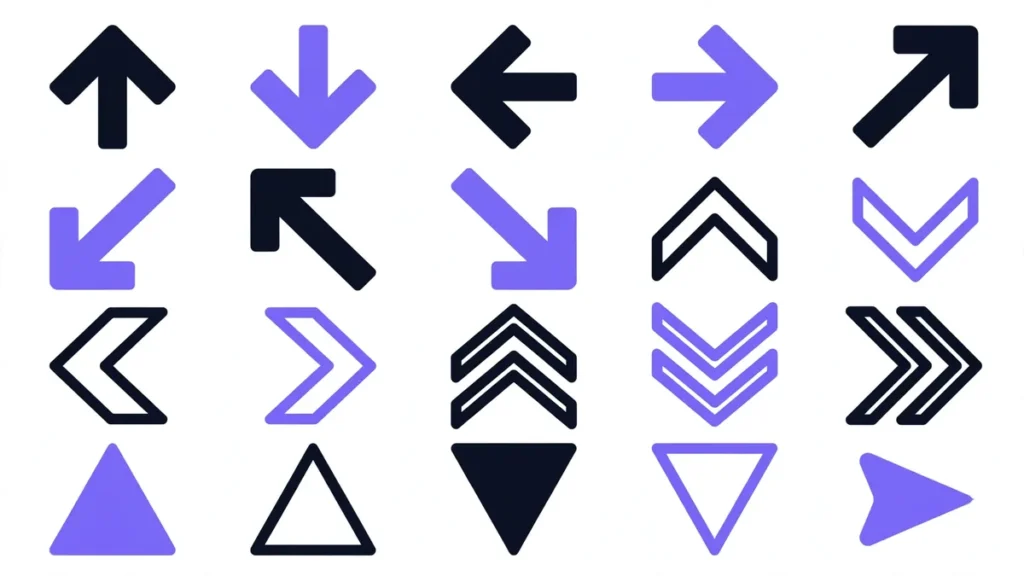
Wingdings 3 is a symbol font that Microsoft includes with both Windows and Microsoft Office installations. Its keys display clean arrows, triangles, and directional pointers instead of the regular letters you type. Charles Bigelow and Kris Holmes designed the original Wingdings in 1990, and this arrow-focused set grew from it.
Each keyboard character maps to one fixed symbol, so typing the same key always gives the same arrow. Wingdings 3 is only a font and not a real language, so it offers no genuine security. Anyone familiar with the symbol mapping can decode the message, making it useful for puzzles, games, and fun exchanges with friends.
What Is a Wingdings 3 Translator?
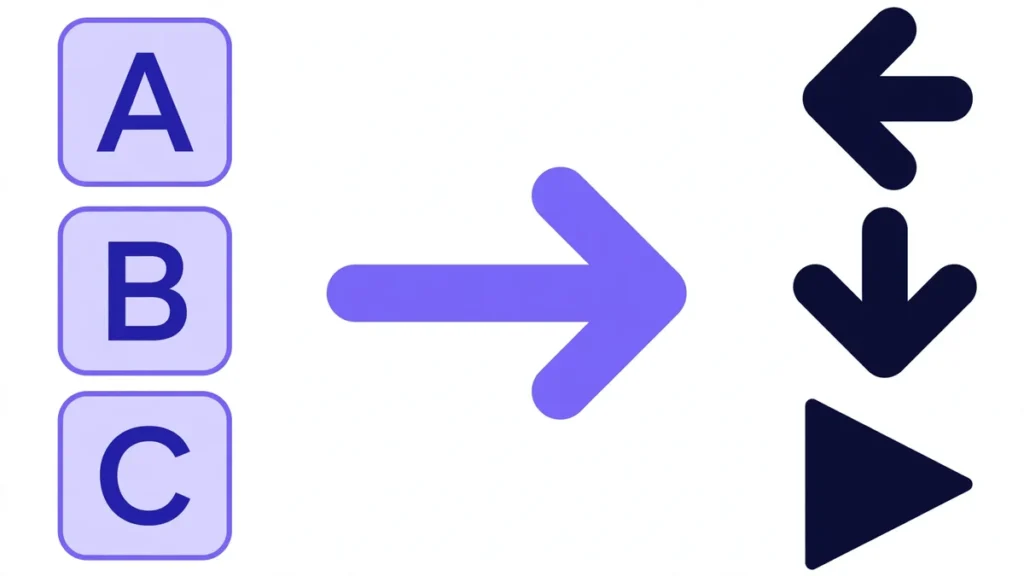
A Wingdings 3 translator swaps ordinary letters and numbers for arrow symbols and reverses the process on request. You can type or paste any English text, and the matching arrows appear instantly.
It supports uppercase letters, lowercase letters, numbers, and the most common English punctuation marks. Accented letters, emojis, and scripts like Japanese cannot be converted because the font has no matching symbols for them. The decoder reads each supported symbol and returns the original keyboard character for you.
How to Use Wingdings 3 Translator?
Wingdings 3 translator takes no time to encode or decode a message. Follow these steps to use the tool without creating an account or downloading software.
Convert Text to Wingdings 3
- Type or paste your message into the input box, and the tool reads it right away.
- Pick the text-to-symbols direction if you see a switch, so the tool knows what to do.
- The arrows appear in the output panel, and you can check them at once.
- Click the copy button and paste the symbols wherever you want.
Decode Wingdings 3 to English
- Copy the arrows and triangles from the message your friend sent you.
- Paste them into the input box of our decoder, which reads every symbol one by one.
- Choose the decode option, and the tool turns the symbols back into letters.
- The plain English result appears in the output panel, ready for you to read.
Key Features of the Wingdings 3 Translator
The Wingdings 3 translator converts regular text into arrow symbols and decodes them back into readable text. These features help you create, copy, and understand symbol-based messages with ease.
Two-Way Conversion
Convert regular text into Wingdings 3 symbols or decode symbols back into readable text. This makes creating coded messages and understanding received ones easier. Both conversion options are available in this converter.
Dedicated Wingdings 3 Support
Wingdings 3 uses a specific character mapping for letters, numbers, and Wingdings symbols. Choosing the correct mapping helps avoid confusion with both fonts. This improves results when converting supported characters.
Unicode Symbol Output
Unicode-based symbols can be copied into supported apps and documents without requiring the original font. Their appearance may vary depending on device and font support. Check the output after pasting to confirm the symbols display correctly.
Easy-to-Use Interface
A simple interface makes entering text and selecting the conversion direction easy. Clear input and output areas help you follow each step without unnecessary confusion. You can focus on encoding or decoding your message.
Free Online Access
The Wingdings 3 translator is available online without payment or separate software installation. Open the webpage in a supported browser whenever you need to convert text. An internet connection is required to access it.
Quick Copy and Reuse
The copy option lets you transfer converted text into compatible messages, documents, and creative projects. This saves you from typing symbols manually. Review the pasted output to ensure the characters display correctly in the destination app.
Font-Based vs Unicode-Based Symbols
Font-based Wingdings 3 needs an installed font, while Unicode symbols offer wider compatibility. Here are the key differences:
|
Feature |
Font-Based Wingdings 3 |
Unicode-Based Wingdings 3 |
|---|---|---|
|
Display |
Needs the Wingdings 3 font installed |
Works with standard system fonts |
|
Underlying Text |
Stays as regular letters |
Becomes real symbol characters |
|
After Pasting |
May turn back into letters |
Usually stays as symbols |
|
Compatibility |
Limited to apps with the font |
Works across many apps and websites |
|
Missing Font |
Symbols may disappear |
Display depends on app support |
Wingdings vs Wingdings 2 vs Wingdings 3
Each font uses a different set of symbols, so choosing the wrong one can give you unreadable results. Check the symbols in your image to identify the font before decoding the message.
Wingdings: The original Wingdings font includes hands, faces, envelopes, folders, and zodiac signs. If your image contains a mix of familiar icons, start with this font. You can use our Wingdings Translator to identify the correct font and decode symbols into readable text.
Wingdings 2: It includes symbols such as pens, check marks, and circled numbers. You may find these in forms, checklists, and older Microsoft Word documents. If the image contains mostly office-related symbols, you should use this font first.
Wingdings 3: It mainly contains arrows, triangles, and directional pointers. If your image shows different arrow styles instead of hands or everyday objects, you should use this font.
If the symbols appear in a screenshot or picture, use Wingdings Image Translator to decode the image into readable text.
Wingdings 3 Symbols Chart
How to Use Wingdings 3 Offline in Word and Google Docs
If you want to use Wingdings 3 offline, Microsoft Word is a convenient option when the font is installed on your computer. You can convert regular text into arrows without opening an online translator.
- Type your text in Word using a standard font such as Arial or Calibri.
- Select the text and open the font dropdown in the toolbar.
- Choose Wingdings 3 to display the characters as arrows and directional symbols.
To insert individual symbols, go to Insert → Symbol → More Symbols, select Wingdings 3, and choose the arrow you need.
Google Docs does not offer Wingdings 3 as a standard font. You can prepare symbols in Word and save the document, but sharing the file may require the recipient to have compatible font support. Real Unicode characters display properly for everyone who opens the document later.
Best Uses for a Wingdings 3 Translator
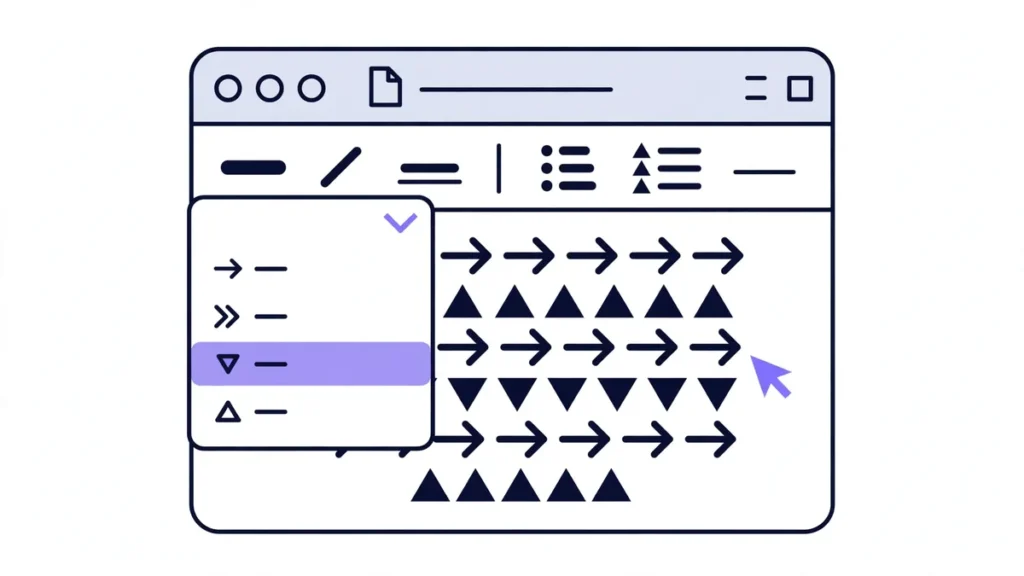
Wingdings 3 turns ordinary text into arrows and directional symbols that work well for puzzles, creative designs, and visual messages. Here are some common ways to use these symbols.
Puzzles and Escape Rooms _ Arrow-based clues add a layer of mystery to games and escape rooms. Players can decode the symbols to uncover hints and work toward solving the puzzle.
Social Media Posts _ Arrows and triangles can add a distinctive style to captions, bios, and posts. They help highlight directions or create a symbol-based message for your audience.
Document Design _ Directional symbols can mark steps, guide readers through flowcharts, or highlight points in presentations. They are useful when you want to show movement or connections between ideas.
Decoding Mystery Messages _ If someone sends you a message made of arrows, a Wingdings 3 translator can help reveal its meaning. You can convert the symbols into readable text instead of checking every character manually.
Frequently Asked Questions
Conclusion
A Wingdings 3 translator converts regular text into arrow symbols and decodes them back into readable English. The correct font mapping helps you avoid conversion errors and understand symbol-based messages. Puzzles, creative designs, and documents become easier to work with when you choose the right conversion method and check symbol compatibility.