
Wingdings Symbols: Copy, Decode, and Use Symbol Text
Plain text can feel boring when you want to make your messages, puzzles, or documents more creative. Wingdings symbols turn keyboard characters into visual signs, such as arrows, hands, stars, and shapes. These symbols help you add visual details without creating graphics from scratch.
A Wingdings translator or symbol chart helps you find and understand these characters. You can use keyboard maps and character codes to insert symbols in supported applications. We’ll explain how Wingdings works and how to copy, decode, and use its symbols.
What Are Wingdings Symbols?
Wingdings symbols transform your normal text into visual characters. You type letters, and they become hands, stars, arrows, checkmarks, shapes, and icons. The Wingdings font that is created by Microsoft works differently than regular text. Each keyboard key connects to a unique visual symbol rather than a letter.
Teachers create interactive learning activities using these symbols. Gamers decode mysteries with them. Designers grab quick icons without creating graphics. Social media users add distinctive symbols to profiles. If you’ve seen strange symbols in messages, you need a symbol chart or decoder to understand them.
How Wingdings Symbols Work
The conversion process is easy, and you can do it quickly whenever you select the Wingdings font. Here is how Wingdings symbols work.
- You type a normal keyboard character (letter, number, or punctuation mark).
- The Wingdings font checks its symbol map and finds the matching symbol.
- Your typed key appears as a visual symbol (icon, arrow, hand, star, or shape).
- The character value stays linked to the original key underneath the visual display.
- A chart or translator decodes it back to the original character using the same mapping.
Why Charles Bigelow and Kris Holmes Created Wingdings
In the early 1990s, designers needed a better way to add symbols to documents. Graphics software was slow and expensive. Charles Bigelow and Kris Holmes, the typographers behind Lucida fonts, solved this problem by creating a symbol font.
They combined Lucida Icons, Lucida Arrows, and Lucida Stars, then hand-drew 226 additional characters for gestures, icons, and decorative marks. Microsoft shipped Wingdings with Windows 3.1 in 1992. Suddenly, one keystroke produced a hand, arrow, star, or checkmark instantly. No separate files or graphics software were needed.
The Wingdings Symbol Chart
The Wingdings symbol chart connects keyboard characters with the symbols displayed by the font. Microsoft provides information about Wingdings and its font family. Use the sample chart below to identify common symbols. The displayed characters are Unicode equivalents, so their appearance may differ from the original Wingdings font.
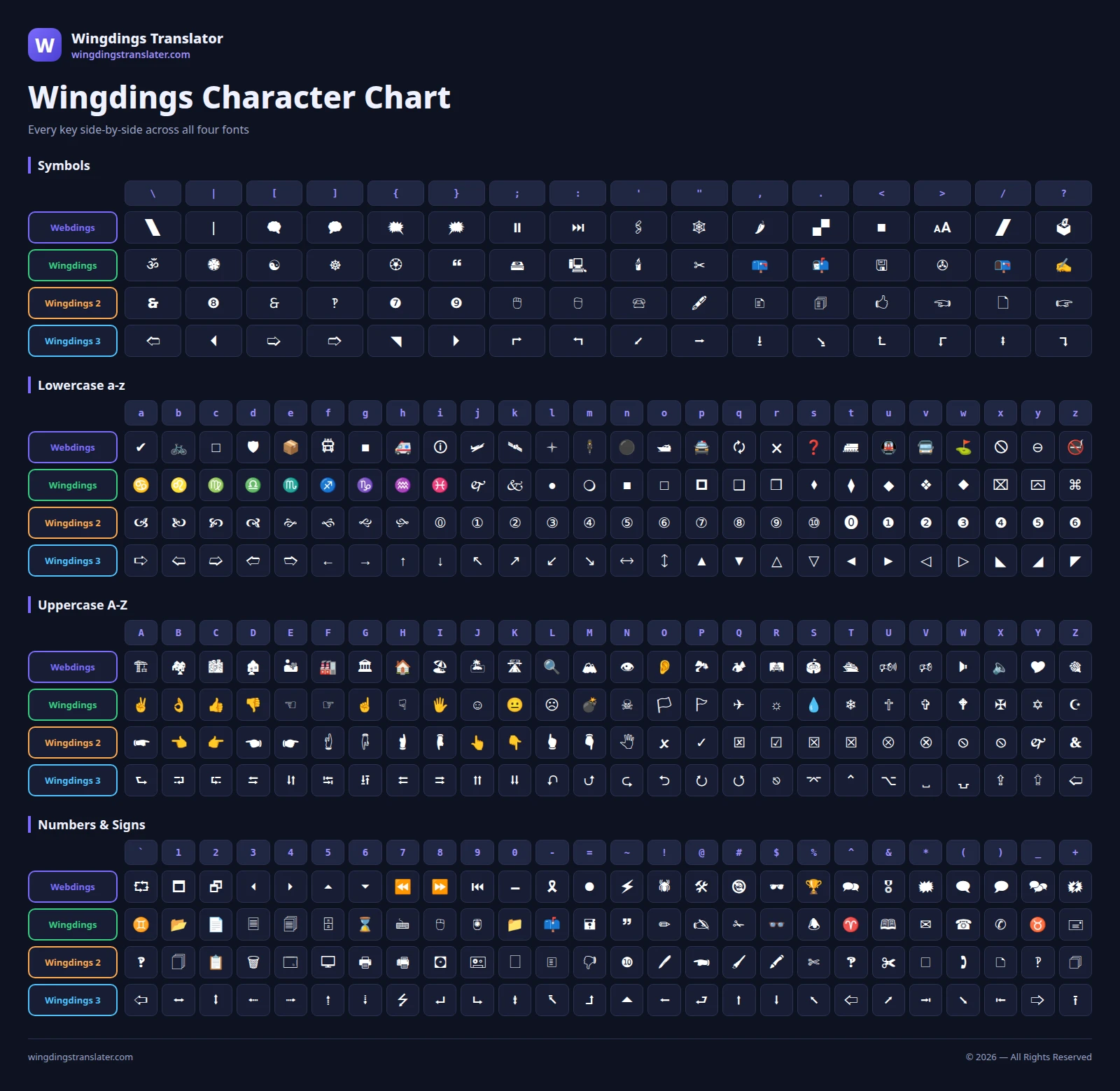
Wingdings Keyboard Maps and Character Codes
These tools make Wingdings symbols easier to find and use. A keyboard map matches keys to symbols. Wingdings character codes help you insert exact symbols in supported software.
| Keyboard Map | Character Code |
| Shows which key creates each symbol | Shows the exact code for each symbol |
| Finding symbols quickly | Inserting exact symbols in software |
| Letters, numbers, and punctuation keys | Decimal, hex, or Unicode values |
| Easy for beginners | Better for advanced users |
| Designers, students, and puzzle creators | Word, Adobe tools, and design software |
| Saves time by avoiding key testing | Gives accurate symbol placement |
How You Can Use Wingdings Symbols
You can create Wingdings symbols with an online translator, a keyboard chart, or a supported desktop application. Choose the method that matches your needs.
Method 1: Online Wingdings Translator
In the Wingdings translator, you type text and instantly see symbols. You can paste symbols, and the decoder converts them to English. You can copy and paste anywhere, as it is the fastest method for most users.
Method 2: Use a Keyboard Map and the Wingdings Font
Open Microsoft Word or another application that supports the font. Find your desired symbol in a keyboard map, select the Wingdings font from the font menu, and type the corresponding key. Check the result before copying or printing your document.
Method 3: Insert a Symbol Using Character Codes
In Microsoft Word, open Insert → Symbol → More Symbols to browse the available characters. Select the appropriate font and choose the symbol you need. If you know a supported Unicode value, you can type it into your document and press Alt + X to convert it. Remember that Unicode values and legacy Wingdings character mappings are different systems.
Real-World Applications for Wingdings Symbols
People across different fields use these symbols for practical, creative purposes every day. Here are the practical uses of these symbols.
Gaming
Gamers decode W.D. Gaster dialogue from Undertale. It is a game that uses Wingdings extensively, using translators and charts. Players solve mysteries encoded in symbols.
Education
Teachers create interactive worksheets where students solve problems to decode answers. Puzzle-based learning keeps students engaged and improves retention.
Design
Designers grab individual symbols for logos, icons, and layouts without creating graphics from scratch. You save hours on graphic design work.
Social Media
Social media users add distinctive symbols to bios and captions to make profiles stand out visually. You create memorable profiles without complex design skills.
Escape Rooms
Puzzle creators encode clues using symbols. Players decode them to unlock hints and move to the next challenge. This makes puzzles more engaging and fun to solve.
Common Issues With Wingdings Symbols and Solutions
Symbols don’t always work perfectly on every platform. Here are the most common problems you may face and how to fix them:
Symbols Don’t Display
This problem can happen when an app does not support the symbol font. It can also happen when the wrong version is selected. Try another browser or text box. Also check that the correct version is selected before you copy or use the symbol.
Symbols Change After Pasting
Some platforms replace symbols with Unicode lookalikes. Others may remove unsupported characters after you paste them. Test the symbols on different platforms before final use. Check the font map again before inserting important symbols.
Decoding Errors
Decoding errors happen when you select the wrong version. A message made with one version may not decode correctly in another version. Try Wingdings versions 1, 2, 3, and Webdings. Also verify the original encoding version if the decoded text still looks wrong.
Important: Wingdings is NOT encryption. Anyone with a decoder can read your messages instantly. You should never use them for passwords, banking details, or sensitive data. Microsoft designed it for creative communication only.
Frequently Asked Questions
Conclusion
Wingdings symbols make plain text more visual and creative. You can use them for puzzles, worksheets, documents, games, and social media posts. A keyboard map, font chart, translator, and Unicode codes help you find the right symbol fast. Just test your symbols before sharing, because this font is made for creativity, not private security.