
Free Wingdings Translator for Symbols and Secret Messages
Convert normal text into Wingdings symbols in seconds, or paste those weird shapes and decode them back into English instantly. You don’t need an account. Just type, and get instant results on any device.
Wingdings can turn ordinary text into symbols, but those symbols aren’t always easy to understand. You might want to create a coded message for a game or figure out what a friend has written using unusual characters. Manually finding each symbol can take longer than the task itself.
Wingdings Translator helps you convert text into symbols and decode supported messages into English in just a few seconds. You can choose from Wingdings 1, 2, and 3 to explore different symbol styles for your needs. Whether you are making a puzzle or adding a creative touch to your content, the tool makes symbol conversion easier.
What Is a Wingdings Translator?
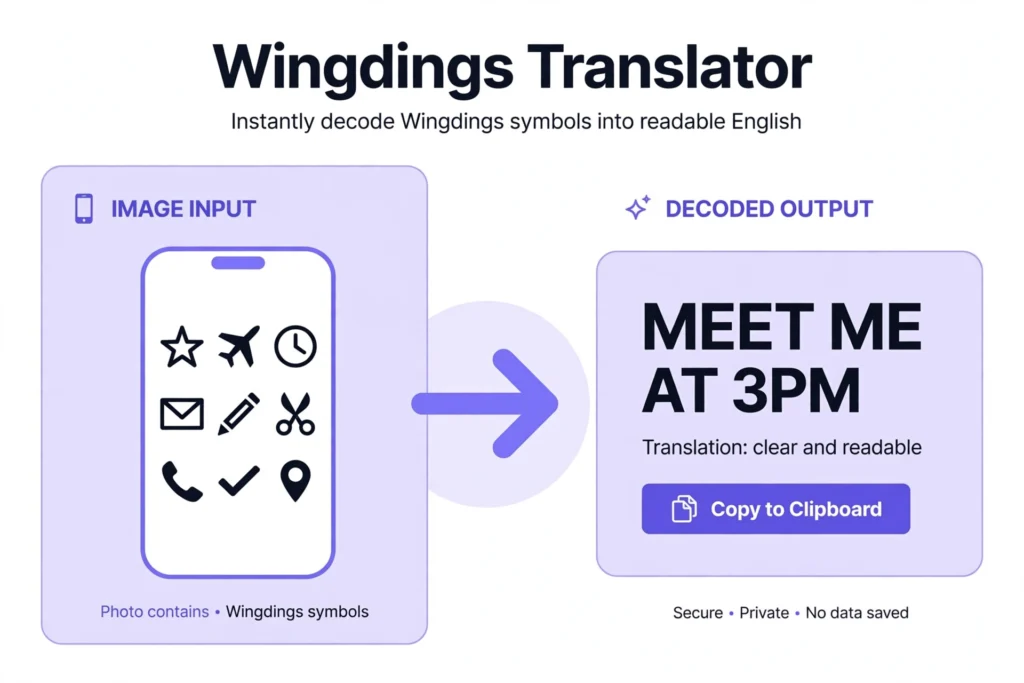
A Wingdings Translator is an online tool that changes normal text into symbols. It matches letters and numbers with Wingdings symbols. It can also turn supported symbols back into readable text. The result appears quickly as you enter your text.
You only need to enter your text. The converter changes it into matching symbols. The decoder can reverse the process and show readable words. This makes it useful for creating and decoding symbol messages.
What Is Wingdings?
Wingdings is a symbol font that displays pictures and icons instead of regular letter shapes. Charles Bigelow and Kris Holmes designed the original font using ideas from Lucida Icons, Lucida Arrows, and Lucida Stars. Microsoft introduced Wingdings with Windows 3.1 in 1992. It gave users an easy way to add visual symbols to digital documents.
The font includes hand gestures, arrows, stars, shapes, weather icons, and other useful symbols. Each keyboard character is linked to a different visual symbol. This makes it easier to add small graphics without using separate image files.
How to Use Wingdings Translator?
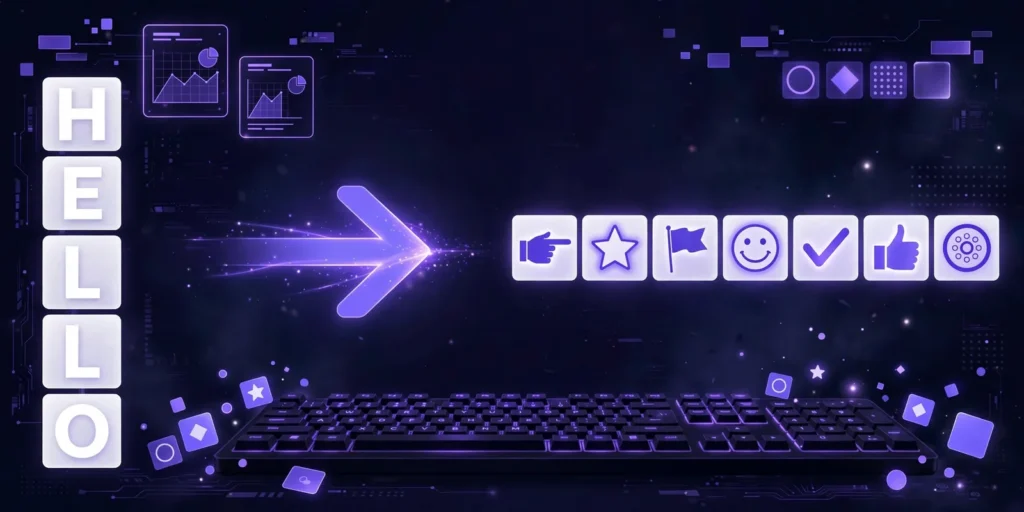
Wingdings Translator online is quite easy to use and takes only a few seconds. Follow these steps to convert text into symbols or decode Wingdings back into readable text.
Step 1: Enter Your Text
Type or paste your text into the input box. Enter normal text if you want to create symbols. Paste symbols instead if you want to decode a message.
Step 2: Choose the Translation Direction
Select the mode that matches your task. Choose Text to Symbols to convert regular text into Wingdings. Select Symbols to Text to decode symbols into readable letters.
Step 3: Select the Version
Select Wingdings 1, Wingdings 2, or Wingdings 3 from the available options. Each version has a different set of symbols, so choose the right one for your text or message.
Step 4: Check the Output
Your converted result appears in the output area. Review the symbols or decoded text before copying it. If something looks wrong, check your input and selected version.
Step 5: Copy Your Result
Click the copy button when your result is ready. The converted output is saved to your clipboard. Paste it into a message, document, puzzle, or creative project.
Is Wingdings a Language or a Code?
Wingdings may look like a secret language, but it is actually a symbol font. It does not have its own words, grammar, or vocabulary. Instead, each keyboard character is linked with a specific visual symbol. This makes normal text look like a coded message made of icons and shapes.
It is also not a real form of encryption. The symbols may hide the meaning from someone who does not know the pattern, but they do not keep the message secure. Anyone with the correct mapping or a decoder can turn the symbols back into readable text. For this reason, it is better for puzzles, games, creative messages, and fun rather than private information.
Main Features of the Wingdings Translator
A Wingdings Translator makes it easy to convert, decode, and copy symbol text. Here are the main features that make symbol conversion easy.
Real-Time Symbol Conversion
This tool converts your text as you type. Wingding symbols appear in the output area without a long wait. This makes it easy to test different words and messages quickly. You can see every change in real time while editing your text.
Text and Symbol Conversion
It works as both a Wingdings converter and decoder. Turn normal text into symbols or decode supported symbols back into readable text. You do not need a separate tool for each task. Simply change the translation mode based on what you want to do.
Different Wingdings Versions
You can choose from Wingdings 1, Wingdings 2, and Wingdings 3. Each version provides a different collection of symbols and shapes. Switching versions helps you find the right style for your message. You can compare the results before choosing your preferred version.
Quick Copy Option
The copy option saves your converted result to the clipboard. You do not need to select every symbol manually. Paste the copied result into any supported message, document, or project. This makes it faster to move your converted text where you need it.
Easy Symbol Reference
The Wingdings character chart helps you find individual symbols quickly. It shows which keyboard characters match different symbols. This is useful when you need one symbol instead of converting a full message. You can use the chart as a quick reference while creating or decoding text.
Works Across Devices
This translator works through a web browser on supported devices. Use it on a phone, tablet, laptop, or desktop computer. No separate desktop software is needed for basic online conversion. This gives you easy access to the tool from different devices.
Letter Case Support
Letter case can affect the symbol produced by some Wingdings mappings. The tool keeps your uppercase and lowercase characters during conversion. This helps you get the symbol that matches your original input. Check the letter case if a symbol does not appear as expected.
Numbers and Punctuation Support
The translator is not limited to alphabet letters. Supported numbers and punctuation marks can also be changed into their matching symbols. This helps you create more complete symbol messages. You can include supported numbers and marks along with normal letters.
Free and Easy to Use
You can start converting text without going through a complicated setup. The simple input and output fields make the tool easy to understand. This makes it useful for beginners as well as regular Wingdings users. You can start typing or pasting your text as soon as you open the tool.
Compare Wingdings 1, 2, 3, and Webdings
The symbol sets look similar at first, but they are not identical. Each one has its own visual focus.
|
Variant |
Main Style |
Useful For |
|---|---|---|
|
Wingdings 1 |
Hands, shapes, stars and familiar symbols |
Puzzles, games and classic Wingdings text |
|
Wingdings 2 |
Decorative and geometric symbols |
Creative layouts and decorative projects |
|
Wingdings 3 |
Arrows and directional symbols |
Direction, navigation and diagrams |
|
Webdings |
Objects and pictorial icons |
Visual projects and object-based symbols |
Wingdings 1 is the original and most familiar version. It contains a broad mix of symbols, which makes it useful for general conversion, puzzles, and game-related content.
Wingdings 2 provides another collection of pictorial and decorative characters. Its shapes can work well when the visual appearance matters more than using the classic Wingdings set.
Wingdings 3 has a strong focus on arrows and directional marks. This makes it more suitable for projects involving movement, navigation, routes, or visual directions. You can use a Wingdings 3 translator to convert text and symbols.
Webdings is a separate symbol font rather than another numbered Wingdings version. It includes many object-style pictograms and is often grouped with Wingdings by online symbol tools because both systems use pictorial characters. Webdings Translator helps you decode these symbols into readable text.
What Is a Wingdings Symbol Chart?
A Wingdings symbol chart is a visual list of Wingdings characters and their related keyboard keys. It helps you find a specific checkmark, pointer, telephone, envelope, circle, or other symbol. Some charts also show the Unicode value and version for each character. This makes it easier to find one symbol without converting a complete sentence.
English to Wingdings: Turn Text Into Symbols
The English to Wingdings Translator changes regular text into visual symbols.
- Enter a word, sentence, or message into the tool.
- The converter matches each supported character with a symbol.
- Use it for puzzles, games, classroom activities, and creative messages.
- Copy the converted symbols and use them in supported projects.
Wingdings To English: Decode Symbol Messages
The Wingdings to English decoder turns supported symbols back into readable text.
- Paste your Wingdings symbols into the input box.
- The decoder matches each symbol with its related character.
- Select the correct version for better results.
- Check the source if the decoded message looks incorrect.
Wingdings For Undertale Messages
The Wingdings Translator is also popular with Undertale fans because of the mystery surrounding W.D. Gaster. Wingdings-style symbols are strongly linked with the character and related game discussions. Fans often use a translator to understand symbol messages, theories, puzzles, and fan-made content. It can make it easier to follow discussions that use Wingdings-style text.
You can also use the translator to create symbol text for Undertale fan projects and messages. Enter your text and use the correct mapping to generate the symbols. Keep in mind that some fan-created content may use custom mappings or other symbol fonts. If a message does not decode correctly, check its source and symbol style before trying again.
Creative Ways to Use a Wingdings Translator
A Wingdings Translator can be used for fun, learning, gaming, and creative projects.
- Puzzle Clues: Turn clues into symbols for puzzles and scavenger hunts.
- Classroom Activities: Create simple decoding and symbol-matching exercises.
- Gaming Content: Make coded messages, fan content, and game-related puzzles.
- Creative Projects: Add Wingdings symbols to posters, worksheets, and presentations.
- Fun Messages: Send symbol messages that friends can decode.
- Social Media: Add unique symbols to supported posts, captions, and bios.
- Secret-Looking Text: Make text look hidden, but do not use Wingdings for real security.

Wingdings Symbols vs Emojis
Wingding symbols and emojis can both communicate through pictures, but they work differently.
|
Feature |
Wingdings |
Emojis |
|---|---|---|
|
Basic system |
Symbol font |
Unicode emoji characters |
|
Original purpose |
Pictorial font for documents and interfaces |
Digital visual communication |
|
Appearance |
Depends on font or chosen mapping |
Can vary by platform design |
|
Typical use |
Symbols, puzzles, retro text, design |
Reactions, feelings, objects and ideas |
|
Security |
Not encryption |
Not encryption |
If you have an image containing Wingdings symbols, use Wingdings Translator from Image to upload the image and convert recognizable symbols into readable text.
Why Do Different Wingdings Translators Show Different Symbols?
You may enter the same word into two websites and receive slightly different results. This does not always mean one tool is broken.
Differences can also happen because:
- The tools use different character maps.
- One tool supports uppercase and lowercase separately.
- A different Wingdings version is selected.
- Unicode lookalikes replace original glyphs.
- Unsupported characters are handled differently.
Use Voice Input With a Wingdings Translator
Wingdings Translator can work with typed or pasted text. They usually do not have their own voice input feature. However, your phone or computer may support voice typing. This gives you an easy way to enter text without typing.
Tap the microphone on your keyboard and speak your text. Your device first changes your voice into normal text. The converter then turns that text into symbols. Check the text before conversion to make sure your words are correct.

Does Wingdings Work in Word and Design Software?
It can work in Microsoft Word and other programs that support the font. Select Wingdings from the font menu and type your characters. The letters will appear as their matching symbols. Some design programs also support installed Wingdings fonts.
Online translator results may work differently when copied into other programs. Unicode-based symbols often paste directly, while font-based symbols may need Wingdings installed. Their appearance can also change between devices or applications. Test important documents before sharing them with others.

Common Wingdings Translator Problems and Fixes
Most problems come from the selected font, browser support, or the way symbols are represented.
Symbols Do Not Match
Check whether Wingdings 1, 2, 3, or another symbol set was used. Sometimes choosing the wrong version changes the mapping.
Decoded Text Makes No Sense
The original symbols may come from another font or mapping. Try confirming the source before decoding them again.
Symbols Change After Pasting
The destination app may not support the same font or characters. Try another modern browser or test the output in a different text field.
Some Characters Are Missing
Not every letter, symbol, or special character has a direct equivalent in every mapping. Try simpler text or check the character chart.
The Tool Does Not Update
Refresh the page and try again. If the problem continues, test another current browser and make sure scripts required by the tool are not blocked.
Who Can Use Wingdings Translator
- Gamers _ Games like Undertale hide messages in Wingdings symbols. Players use translators to decode them and understand the lore.
- Designers _ Need a specific symbol for a poster? Type a letter into the translator and grab the symbol instantly. Faster than hunting through icon libraries.
- Teachers _ Build worksheets where students solve a problem, then paste their answer into the translator to check it. Makes learning interactive.
- Social Media Users _ Use it to make Instagram bios, TikTok usernames, and Discord names stand out. Symbols catch attention.
- Puzzle Creators _ Encode clues in Wingdings for escape rooms and scavenger hunts. Players decode them and solve the puzzle.
- Anyone Sending Secret Messages _ Friends can read your encoded caption. Everyone else just sees random symbols.
Is a Wingdings Translator Safe?
Wingdings itself is not dangerous, but privacy depends on the tool you use. Some translators may process your text directly in the browser. Others may send the entered text to a server. Check the website’s privacy policy before entering important information.
Wingdings should not be used to protect private data. Its symbols may look like a secret code, but they are easy to decode with the correct mapping. Avoid entering passwords, banking details, or private account information. Use a Translator mainly for puzzles, messages, learning, and creative projects.
Pros & Cons Of Wingdings Translator
Pros
Cons
Frequently Asked Questions
Conclusion
A Wingdings Translator makes it easy to turn normal text into symbols and decode symbols back into readable text. You can choose Wingdings 1, 2, or 3 and quickly check the converted result. This saves time compared with finding each symbol manually.
This tool is useful for puzzles, classroom activities, gaming content, creative projects, and fun messages. A decoder also helps you understand symbol messages when the correct mapping is supported. Remember that Wingdings is a symbol font, not a secure form of encryption.